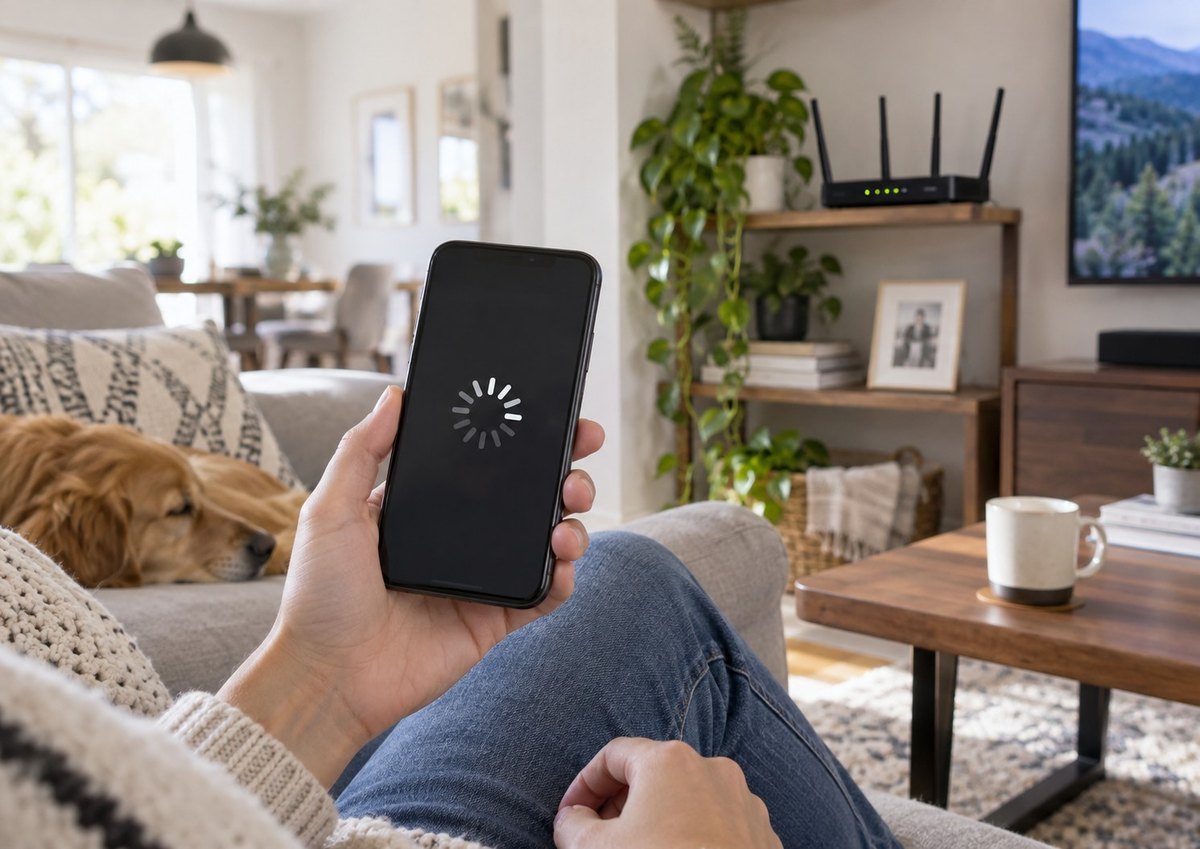
Try this quick check. It can help show whether the problem is Wi-Fi coverage, one device, your home network, or the internet connection itself.
Start Here: A 60-Second Wi-Fi Check
1. Run a speed test while standing close to your router.
2. Run the same test in the room where Wi-Fi usually feels slow.
3. Test a second phone, tablet, or laptop from the same spot.
What happened?
Much slower farther from the router?
Coverage, walls, distance, or interference may be the issue.
Only one device is slow?
The problem may be that device rather than your Wi-Fi network.
Everything is slow everywhere?
Your modem, router, internet plan, or ISP connection may be involved.
Before replacing anything, check these 9 common causes.
Looking for a Specific Problem?
Wi-Fi is slow in another room?
Start with #1 and #2.
Wi-Fi works, but feels slow when everyone is home?
Check #5.
Only one phone or laptop is slow?
Jump to #6.
1. Your Router Is in the Wrong Place
Signs
Wi-Fi works reasonably well near the router but becomes weaker in other parts of the home.
Try this
Move the router to a more open and central location if possible.
Keep it off the floor and avoid hiding it inside a cabinet.
Also try moving it away from:
- large TVs
- metal objects
- thick furniture
- appliances
- crowded entertainment centers
What it tells you
If Wi-Fi improves after moving the router, coverage was probably part of the problem.
You may not need a new router at all.
2. Walls and Distance Are Weakening the Signal
Wi-Fi signals don’t pass through every material equally well.
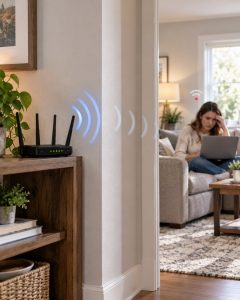
Concrete, brick, metal, thick walls, and multiple floors can make the connection weaker as you move away from the router.
Signs
Your connection is good in one room but noticeably worse a few rooms away or on another floor.
Try this
Walk toward the router while using the same device.
If the connection becomes noticeably better as you get closer, distance or obstacles may be affecting the signal.
What it tells you
This points more toward a coverage problem than a problem with the internet plan itself.
For larger homes, repositioning the router may help. In some cases, a mesh system or additional access point may eventually make sense.
But check the other causes first.
3. Your Device May Be Using the Wrong Wi-Fi Band
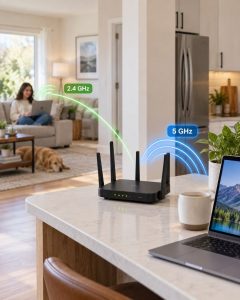
Many routers use both 2.4 GHz and 5 GHz Wi-Fi.
They behave differently.
2.4 GHz
Usually reaches farther and can work better through walls.
But it can also be more crowded.
5 GHz
Can offer better performance at shorter distances.
But the signal generally weakens more quickly through walls.
Try this
If your router allows you to choose between the bands, test both from the location where you normally use the device.
Close to the router, 5 GHz may work better.
Farther away, 2.4 GHz may provide a more reliable connection.
What it tells you
A slow connection in one room doesn’t necessarily mean the router is bad.
Your device may simply be connected to a band that isn’t ideal for that location.
4. Nearby Wi-Fi and Electronics May Be Causing Interference
Your router isn’t necessarily the only wireless device around you.
In an apartment building or busy neighborhood, there may be many nearby Wi-Fi networks using the same wireless spectrum.
Other electronics can sometimes contribute to interference too.
Signs
Wi-Fi performance seems inconsistent or gets worse at certain times.
Try this
If your router has automatic channel selection, make sure it’s enabled.
You can also try moving the router farther away from other electronics.
Then test again from the same location.
What it tells you
If performance becomes more stable after changing the router’s position or wireless channel, interference may have been contributing to the slowdown.
5. Your Home Network Is Busier Than You Think
One of the easiest causes to overlook is simple network usage.
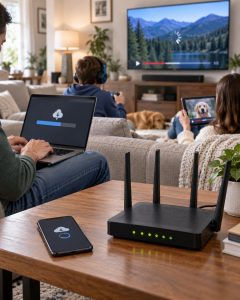
At the same time, your home may be:
- streaming movies or TV
- downloading a game
- backing up photos
- syncing cloud storage
- running security cameras
- downloading software updates
- using video calls
- streaming on several devices
All of that shares the same internet connection.
Signs
Wi-Fi feels slower when several people are home or during heavy streaming and downloads.
Try this
Pause large downloads, backups, game updates, and streaming for a few minutes.
Then test the connection again.
What it tells you
If the connection improves when network activity decreases, your router may be working normally.
The slowdown may simply be caused by several devices competing for the available connection.
6. The Problem May Be One Device
Before blaming your whole network, compare devices.
Signs
Your phone is fast, but your laptop is slow.
Or your laptop works normally while one smart TV constantly buffers.
Try this
Use a second device in the exact same location.
If only one device has the problem:
- restart it
- disconnect and reconnect to Wi-Fi
- pause downloads
- temporarily disable a VPN
- check for operating-system updates
- close bandwidth-heavy apps
What it tells you
If other devices work normally, replacing the router probably won’t fix the real problem.
The device itself may be the bottleneck.
7. Your Router or Modem May Need a Restart
Routers and modems often run continuously for weeks or months.
Occasional connection problems can sometimes be resolved with a restart.
Try this
Use your router’s app or administration interface if it provides a restart option.
If not, follow the restart instructions from your ISP or router manufacturer.
If you have separate modem and router devices, follow the recommended restart order for your equipment.
Also check
Look for available router firmware updates.
Updates can sometimes improve stability, compatibility, and security.
What it tells you
If a restart immediately resolves the issue but the problem keeps returning, further troubleshooting may be needed.
8. Your Internet Provider May Be the Bottleneck
This distinction is important:
Wi-Fi and internet service are not the same thing.
Wi-Fi is the wireless connection between your device and router.
Your router then connects to your internet provider.
You can therefore have a strong Wi-Fi signal but still experience slow internet.
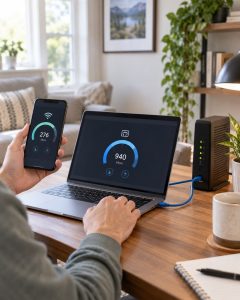
Try this
Run several tests at different times.
If possible, connect a computer directly to the router or gateway with an Ethernet cable.
Then compare the wired connection with Wi-Fi.
What it tells you
Ethernet is fast but Wi-Fi is slow:
The problem is more likely inside your home Wi-Fi network.
Ethernet and Wi-Fi are both slow:
The issue may involve the modem, ISP connection, internet plan, or equipment.
Check your provider’s app or website for outages before changing hardware.
9. Your Router May Actually Be Too Old
Sometimes replacing the router really is reasonable.
But it’s better to reach that conclusion after testing the simpler causes.
A replacement may make more sense if:
- the router no longer receives security or firmware updates
- it can’t support the speed of your current internet plan
- it struggles with the number of devices in your home
- it uses much older Wi-Fi technology
- wired performance is good but Wi-Fi remains poor even after repositioning and troubleshooting
Don’t replace it just because Wi-Fi feels slow once
A weak signal in one bedroom may be a placement problem.
One slow laptop may be a device problem.
Slow performance while everyone is streaming may simply be network congestion.
The important question is:
What is actually limiting the connection?
When a New Router Actually Makes Sense
Before buying one, you should ideally know that at least one of these is true:
- Your existing router is the limiting factor.
- It no longer receives important updates.
- It can’t handle your current internet speed or number of devices well.
- You’ve already ruled out location, interference, individual devices, and ISP problems.
If none of those are clear yet, more troubleshooting may save you from buying hardware that doesn’t solve the problem.
The Quick Checklist
- ✓ Test close to the router
- ✓ Test in the problem room
- ✓ Compare a second device
- ✓ Try 2.4 GHz and 5 GHz
- ✓ Pause downloads and streaming
- ✓ Restart your network equipment
- ✓ Check for firmware updates
- ✓ Test with Ethernet if possible
- ✓ Check your ISP for outages
A few simple comparisons can usually tell you much more than a single speed-test result.
And once you know whether the problem is coverage, congestion, a device, your router, or your internet connection, you’ll have a much better idea of what to do next.
General information only. Wi-Fi performance varies by home layout, devices, equipment, internet service, and local wireless conditions.