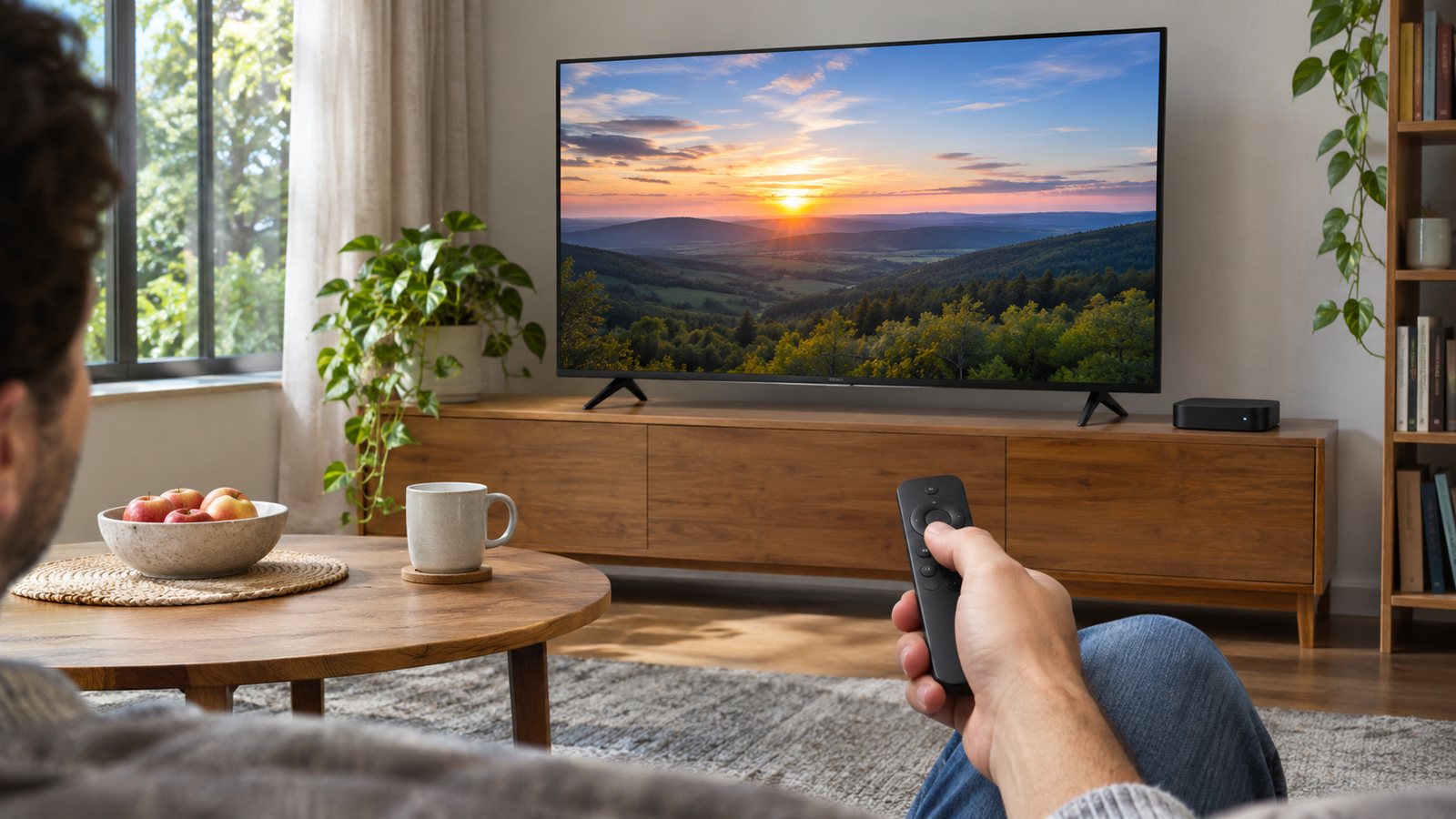
HDMI-CEC lets compatible devices send control commands through their HDMI connection. It may let one remote wake the TV, switch to the streaming input or operate supported functions. Which commands work depends on both devices.
Start by deciding which remote you want to keep using. A streaming remote controlling TV volume and a TV remote navigating a streaming box are different tests. Success with one does not guarantee the other.
Find the setting on both devices
Note the TV and streaming-device model numbers, their HDMI connection and the current settings. Look for CEC or the manufacturer’s name for it: Roku’s official guide lists Samsung Anynet+, LG SIMPLINK and Sony BRAVIA Sync.
On supported Roku TVs, the documented route is Settings → System → Control other devices (CEC) → 1-touch play. Other TVs and external streaming players have different menus; check each model’s current manual.
CEC is a control feature. ARC and eARC concern returning audio from the TV to compatible audio equipment. Do not change audio-output formats just because you want the remote to switch inputs.
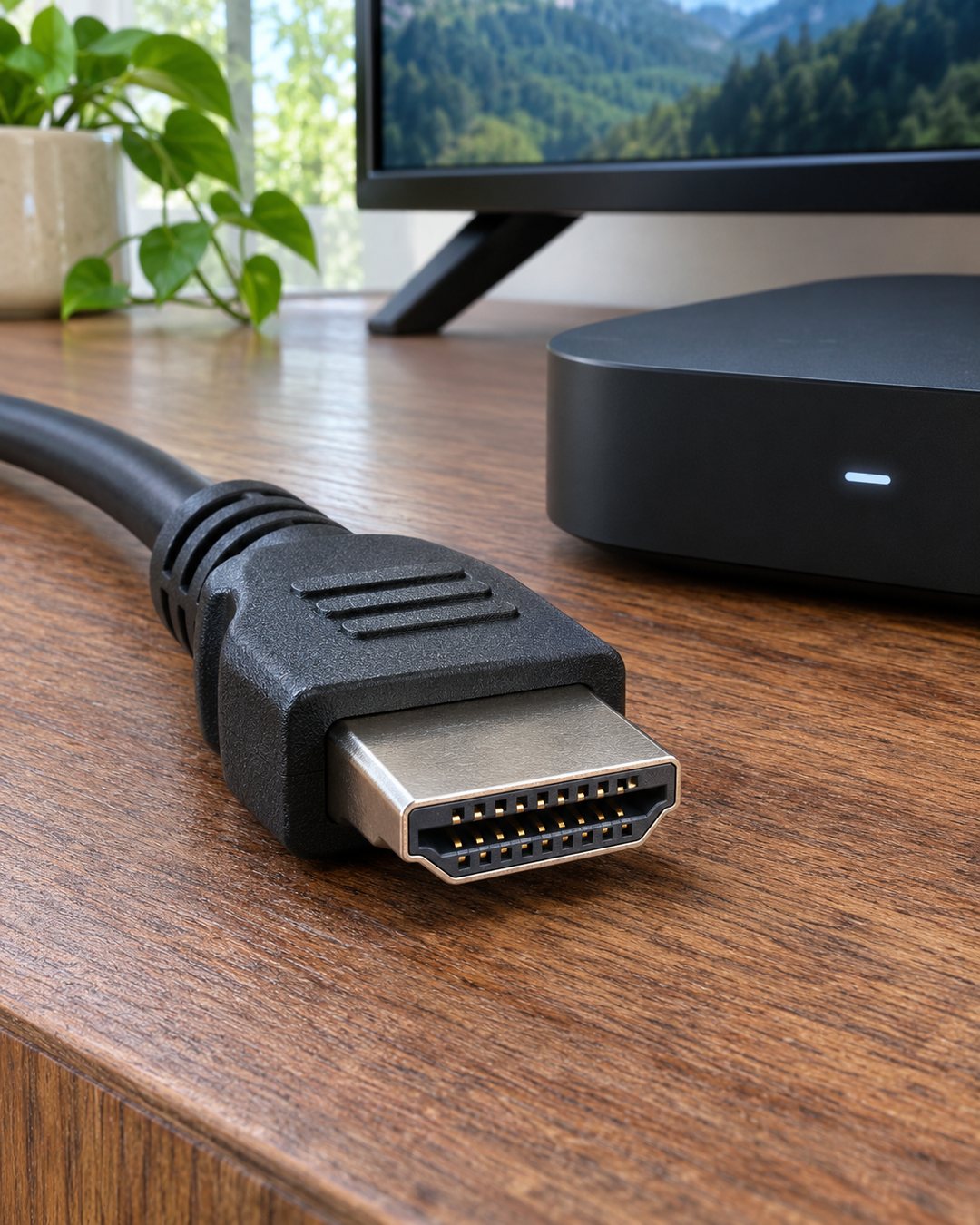
Make a simple connection map
Write one line describing the path: streaming box → TV HDMI input, or streaming box → receiver → TV. Include a soundbar if it participates in the connection.
Enable the relevant CEC controls on compatible devices. If the system includes a receiver or switch, consult that device’s instructions too. Avoid changing several unrelated settings together.
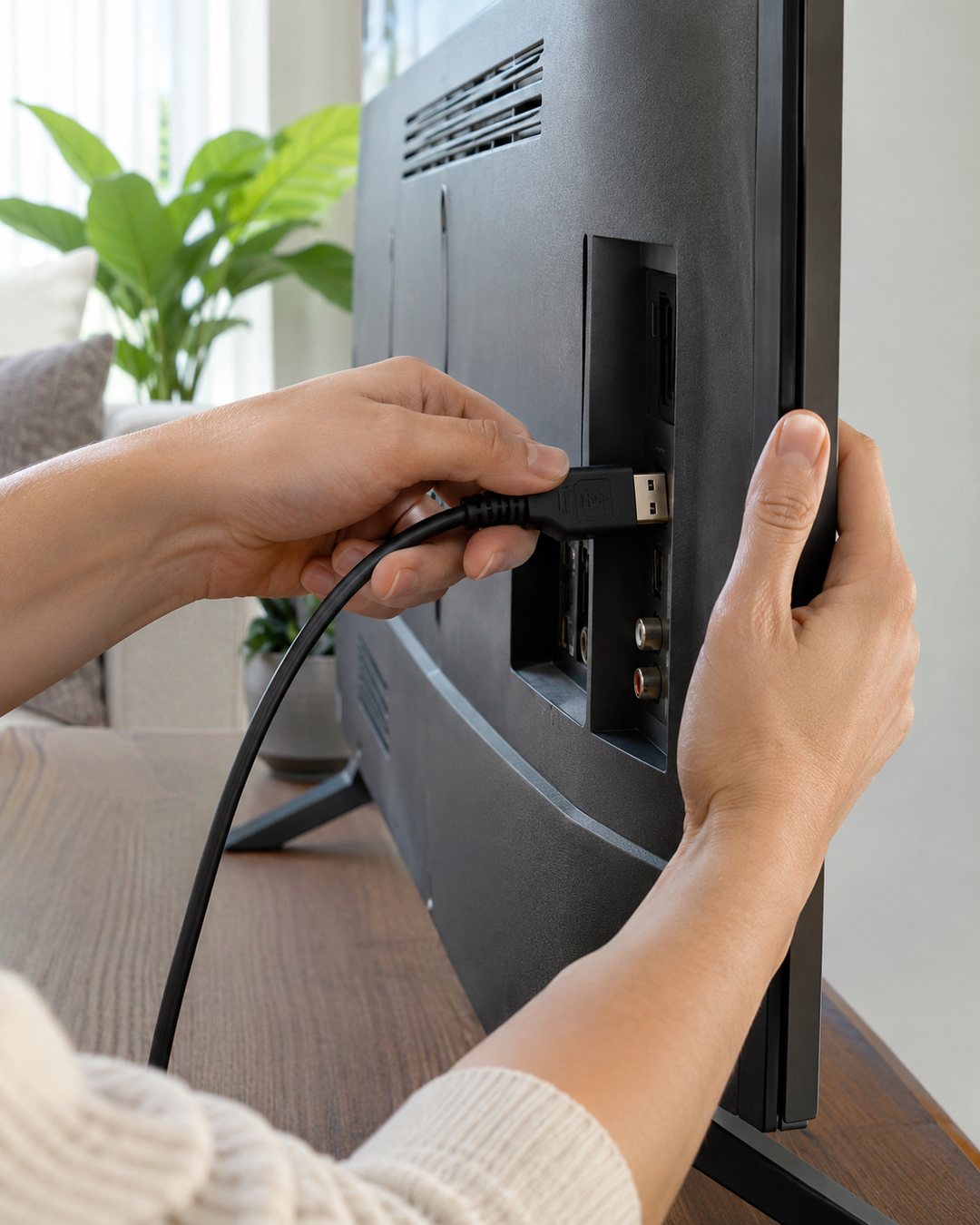
If the plug is loose, follow the equipment instructions to power down safely and reseat it. Never force a connector or pull a wall-mounted screen forward without appropriate support.
Test three commands independently
- Wake and switch: with the TV in standby, press the streaming remote’s Home button. Does the TV wake and select the correct HDMI input?
- Navigate: use the remote you want to keep for directional movement and selection in the streaming interface. Check only commands the device supports.
- Volume: test a small volume adjustment and mute. Confirm which speakers actually change.
Keep the TV remote nearby during setup. Some streaming remotes use infrared for TV power or volume, so volume working by itself does not establish that HDMI-CEC works. Roku documents separate TV-control setup for compatible voice remotes.
Try the same sequence again after returning the system to standby. One successful button press is less useful than a routine you can repeat.
A worked check record
Copy this template: TV model / player model / connection path / CEC setting on each / wake and input result / navigation result / volume result / unwanted behavior.
Illustrative example: “Player connected directly to HDMI 2 / wake and input work / directional buttons unsupported on this TV remote / streaming remote volume requires its separate TV-control setup.” This describes how to record mixed results; it is not a test of particular products.
If another console unexpectedly wakes or changes the input, record which action triggers it. Where supported, adjust that device’s automatic power or input feature rather than disabling every device indiscriminately.
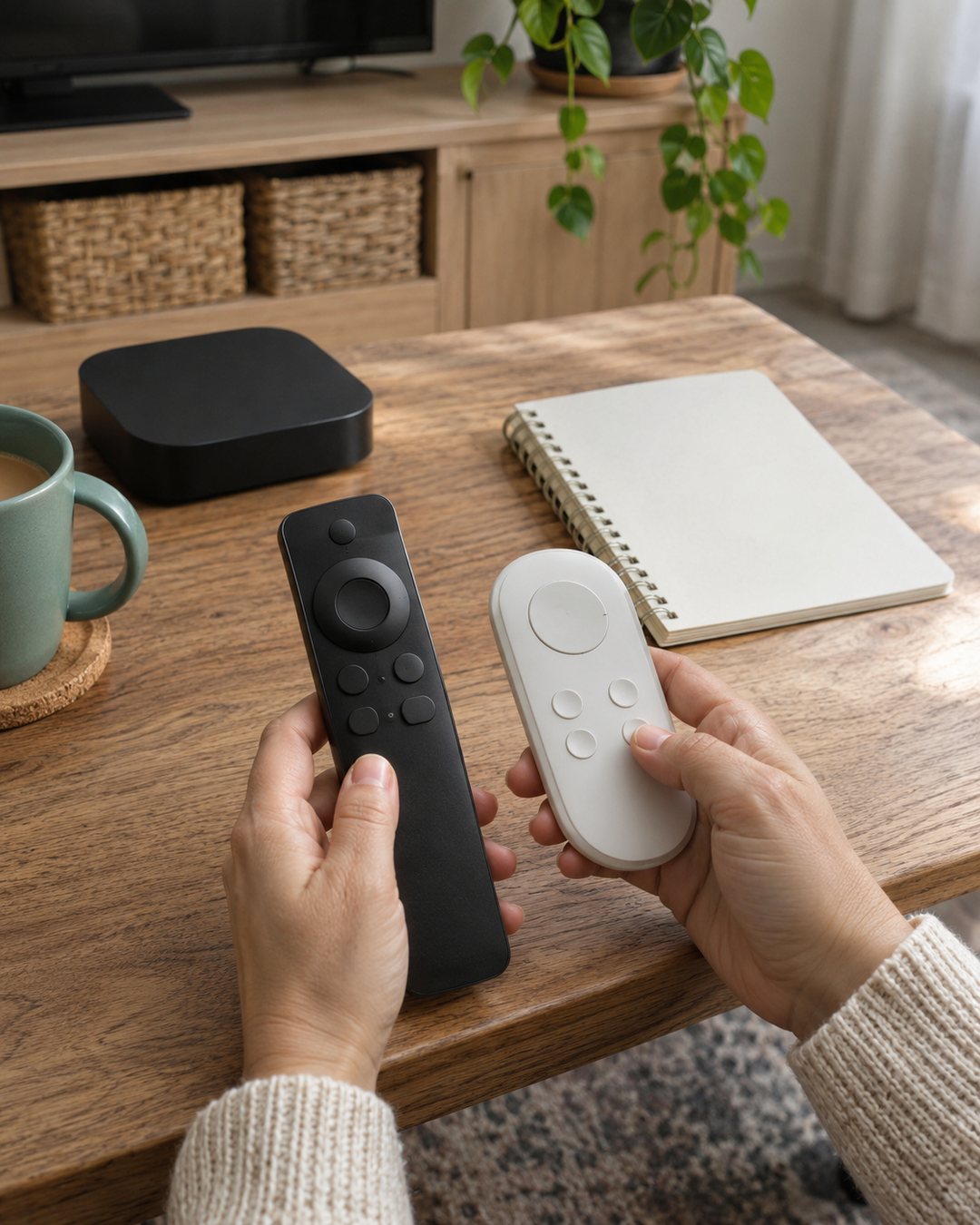
If a command still fails
Confirm compatibility and the correct input first. Restart equipment using its documented procedure if settings do not take effect. Do not factory-reset an otherwise working system as the first troubleshooting step.
For a receiver or HDMI-switch setup, a temporary direct-to-TV test can help isolate the path if you can reconnect safely. A missing feature may be a compatibility limit rather than a broken remote.
If the sound itself is difficult to follow after control works, use our TV dialogue settings checklist.
Official references, checked November 4, 2026: Roku CEC and ARC guide; Roku remote TV-control setup. Menus and supported commands vary by model.
Images are AI-generated illustrations, not screenshots or evidence of tested products or a real household’s records.