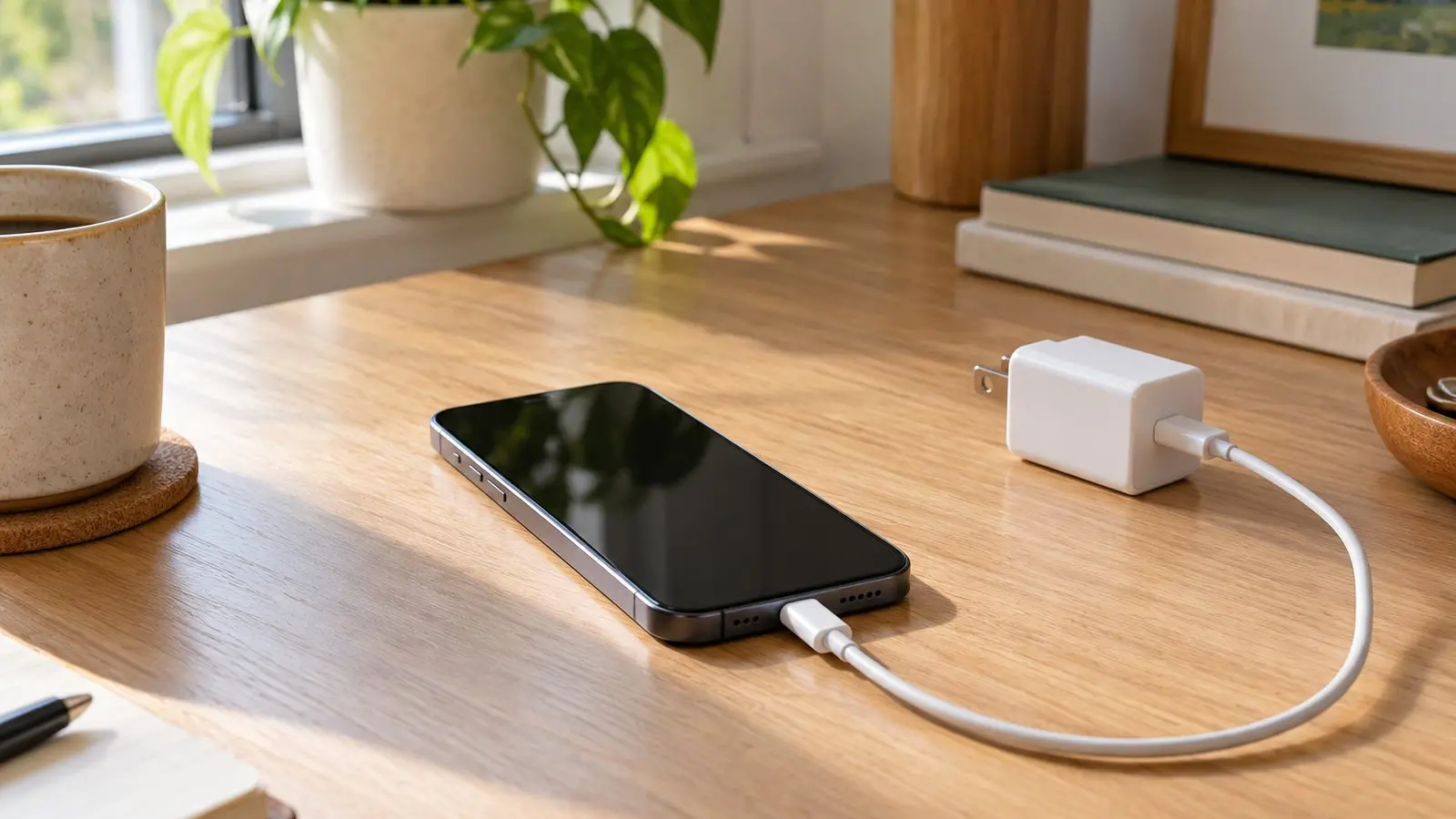
Your phone has been plugged in for a while, but the battery number barely moved. Before buying a new charger, separate three possibilities: the phone is receiving limited power, it is using much of that power, or its charging protection is deliberately slowing things down.
Quick answer: Read any charging message, let the phone return to a normal temperature, then compare one intact compatible cable and adapter at a time. Keep the screen off during comparisons. A slow final stretch near full charge does not necessarily indicate a fault.
This guide covers common checks for iPhone and Android phones. Menus and charging capabilities vary by model and software version. The examples below are diagnostic exercises, not measured results from a BetterScope hardware test.
First, check whether it is safe to continue
Stop charging if you notice swelling, a lifting screen, smoke, a burnt smell, melted plastic, or a visibly damaged cable or adapter. Do not press a swollen battery flat or continue testing a damaged accessory. Arrange manufacturer or qualified repair support; for smoke or fire, move away and contact local emergency services.
A liquid warning is also a reason to stop. Follow your phone manufacturer’s drying instructions rather than inserting tools or trying another charger immediately. Never use a refrigerator, freezer, or hair dryer to force a temperature change.
1. Read the message before changing the equipment
Look at the lock screen and battery settings. Write down the exact message rather than relying on the charging symbol alone.
On supported iPhones with iOS 18 or later, a Slow Charger message can indicate that a different charger could provide more power. It does not by itself mean the phone or charger is broken. Apple describes this in its charging-speed guide.
A charging limit, scheduled completion, or temperature hold points toward a different explanation. On Android, wording and menu locations differ; search Settings for “charging” and consult the documentation for your exact model.
Your next step: If the message explains a deliberate hold or limit, investigate that setting before replacing hardware.
2. Compare the power source, not just the plug shape
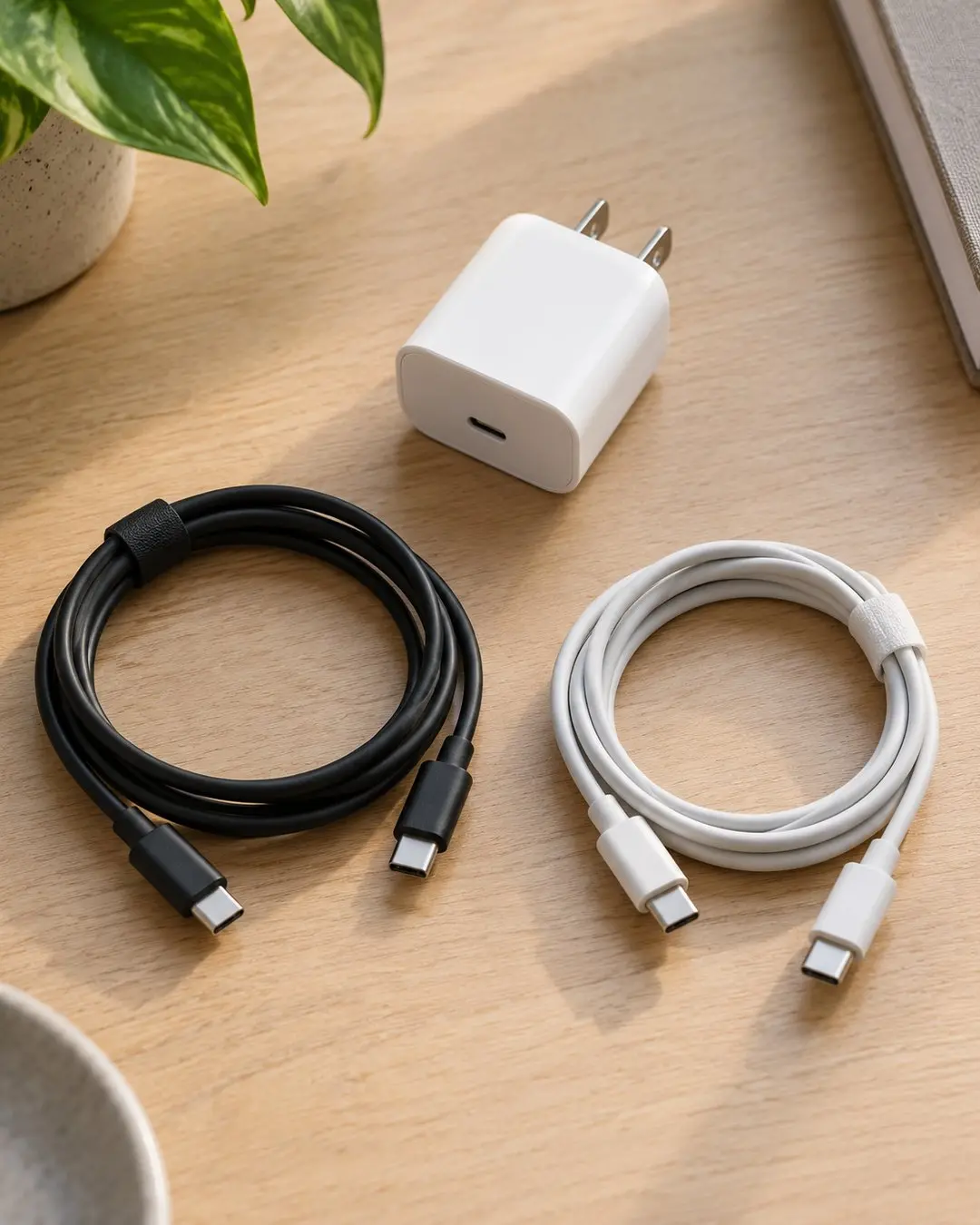
A cable that fits is not proof of a fast-charging combination. The phone, cable, adapter, and supported charging protocol all matter. Use the manufacturer’s compatibility guidance for your model instead of choosing by the largest wattage printed on a package.
For a clean comparison, use an intact compatible wall adapter in a working outlet, without a hub or other equipment in between. A shared multiport adapter can distribute its available power among connected devices.
Leave the phone in a similar battery range for each comparison. Comparing one session near empty with another near full can make the equipment look responsible for a difference caused by charging behavior.
3. Change one accessory at a time
Start with your usual intact adapter and a second compatible cable. If the phone responds differently, repeat the comparison before concluding that the original cable is the problem.
Next, keep the second cable and try a known-compatible adapter. This makes your notes more useful than swapping the cable, adapter, outlet, and wireless pad together.
Check connections without forcing them. If a connector is loose, charging repeatedly disconnects, or the port appears damaged, stop treating this as a speed problem. Follow manufacturer service guidance. Do not scrape the port with a pin or other metal object.
Apple’s charging troubleshooting instructions cover accessory damage, connections, and circumstances that require service.
4. Give heat and phone use a separate check
Place the phone on an uncovered, stable surface away from direct sun. Let it return naturally to a comfortable indoor temperature. Avoid running games, navigation, video recording, or a bright display while comparing charging setups.
Charging progress reflects energy going into the battery after the phone’s own activity uses some of the incoming power. A charging symbol does not promise that the battery percentage will climb at the same rate during every activity.
What a change means: If progress improves with the screen off and the phone cooler, activity or temperature may have contributed. That observation alone does not establish battery health or identify an internal fault.
5. Check wireless alignment separately
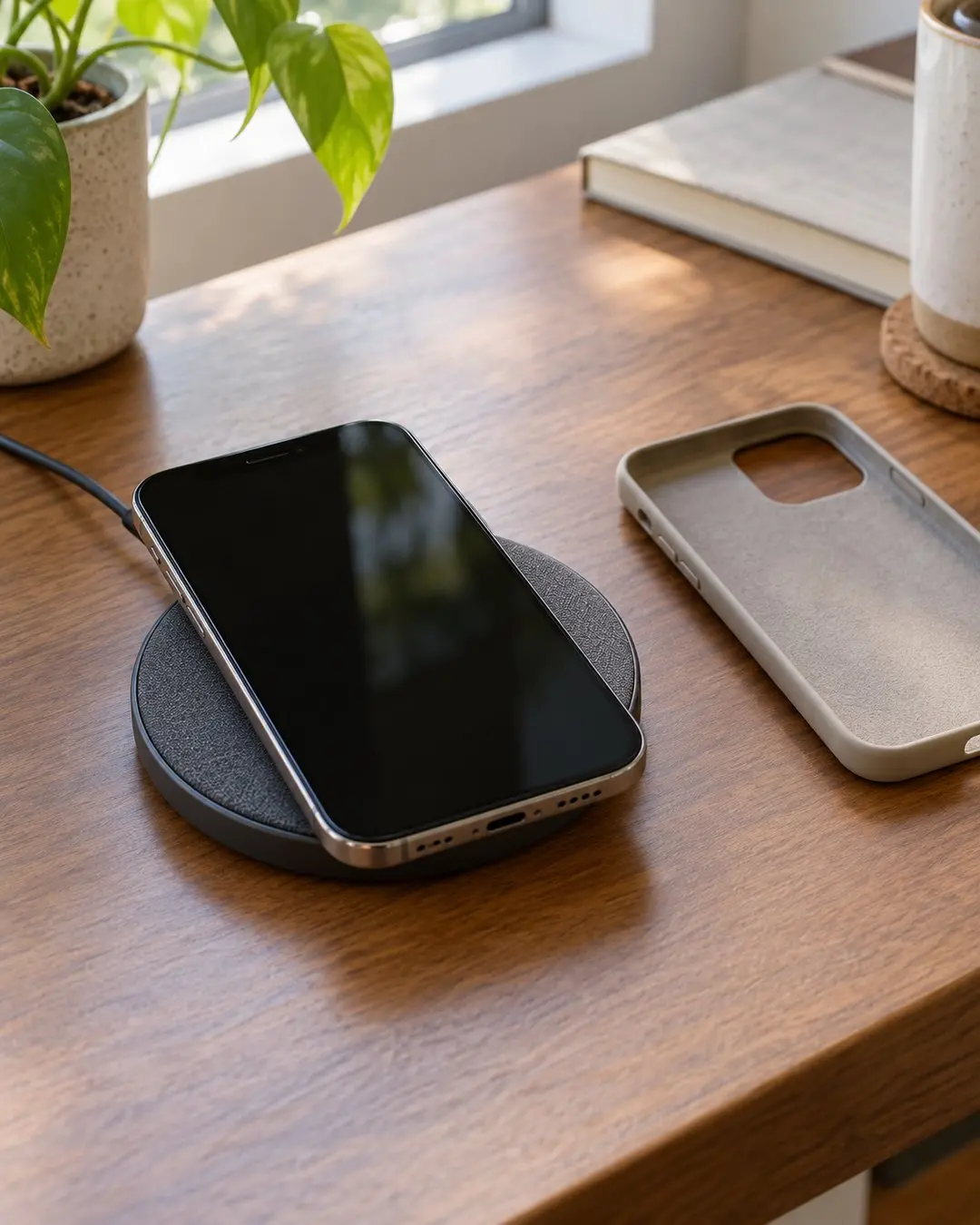
If you normally use wireless charging, try an intact compatible wired setup as a separate comparison. A better wired result is a clue to investigate the wireless arrangement, rather than proof that the battery is defective.
For Pixel wireless charging, Google recommends checking alignment, removing interfering accessories, allowing the phone to cool, and keeping the screen dark. Follow the accessory guidance for your particular phone and charger; magnetic accessories are not interchangeable across every system. Google’s Pixel wireless-charging checks.
Do not put coins, keys, or other foreign objects between a phone and its pad. Use the case and charger only in combinations their manufacturers support.
6. Understand why charging can slow near the top
A phone may deliberately slow or pause charging as the battery fills. Some models also offer charge limits or adapt completion to your routine. Check the on-screen explanation before assuming that stopping near a particular percentage is a hardware failure.
Leave protective features enabled unless you understand the purpose of a supported setting and have a specific reason to change it. Disabling a feature is not a general battery-repair method.
Keep a comparison note you can show support
Copy these fields into Notes. Use the same observation interval each time—for example, 15 minutes—as a convenient comparison window, not a standard the phone must pass.
- Phone model and software version.
- Starting and ending percentage; start and finish time.
- Cable and adapter used, including their model information.
- Wired or wireless; other devices sharing the adapter.
- Screen off or active use; any temperature or charging message.
Worked example: You compare the usual cable and a second compatible cable with the same adapter, similar starting charge, and the screen off. The second cable repeatedly gives steadier charging. Your useful conclusion is “the original cable or its connection needs closer investigation,” rather than “the battery is worn out.” These are illustrative observations, not published test measurements.
When to stop troubleshooting
Contact the manufacturer if charging remains unreliable with compatible intact accessories, the port will not hold a connection, or the phone repeatedly reports a warning. Bring your comparison notes so support can see what changed and what stayed the same.
If you are investigating several household technology problems, our Wi-Fi troubleshooting guide uses the same useful habit: compare one variable before buying replacement equipment.
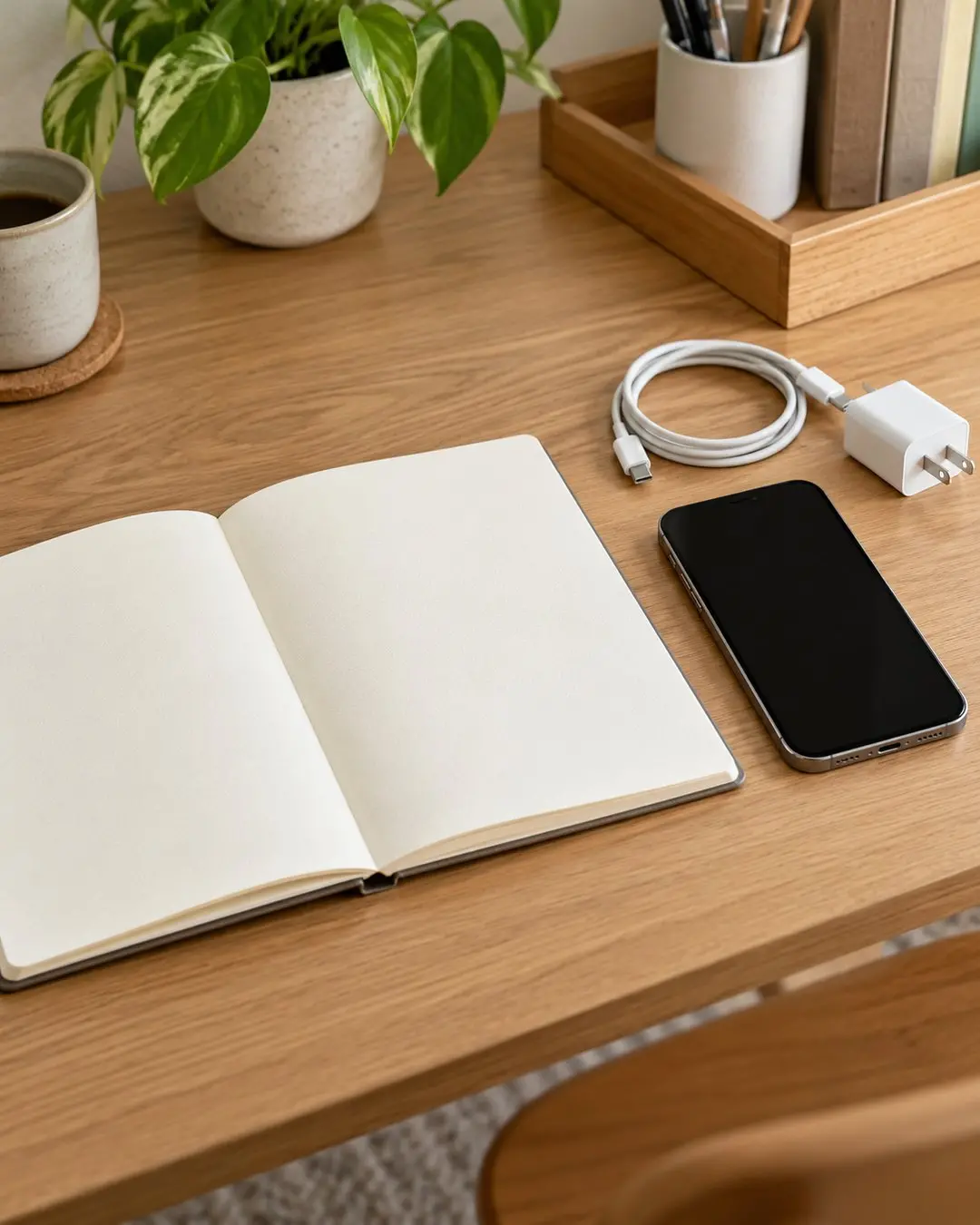
Illustrations were AI-generated for this guide. They are not photographs of a tested device.
Follow your device’s instructions. Do not charge damaged equipment.
1 thought on “Why Your Phone Charges Slowly—and How to Find the Cause”
Comments are closed.