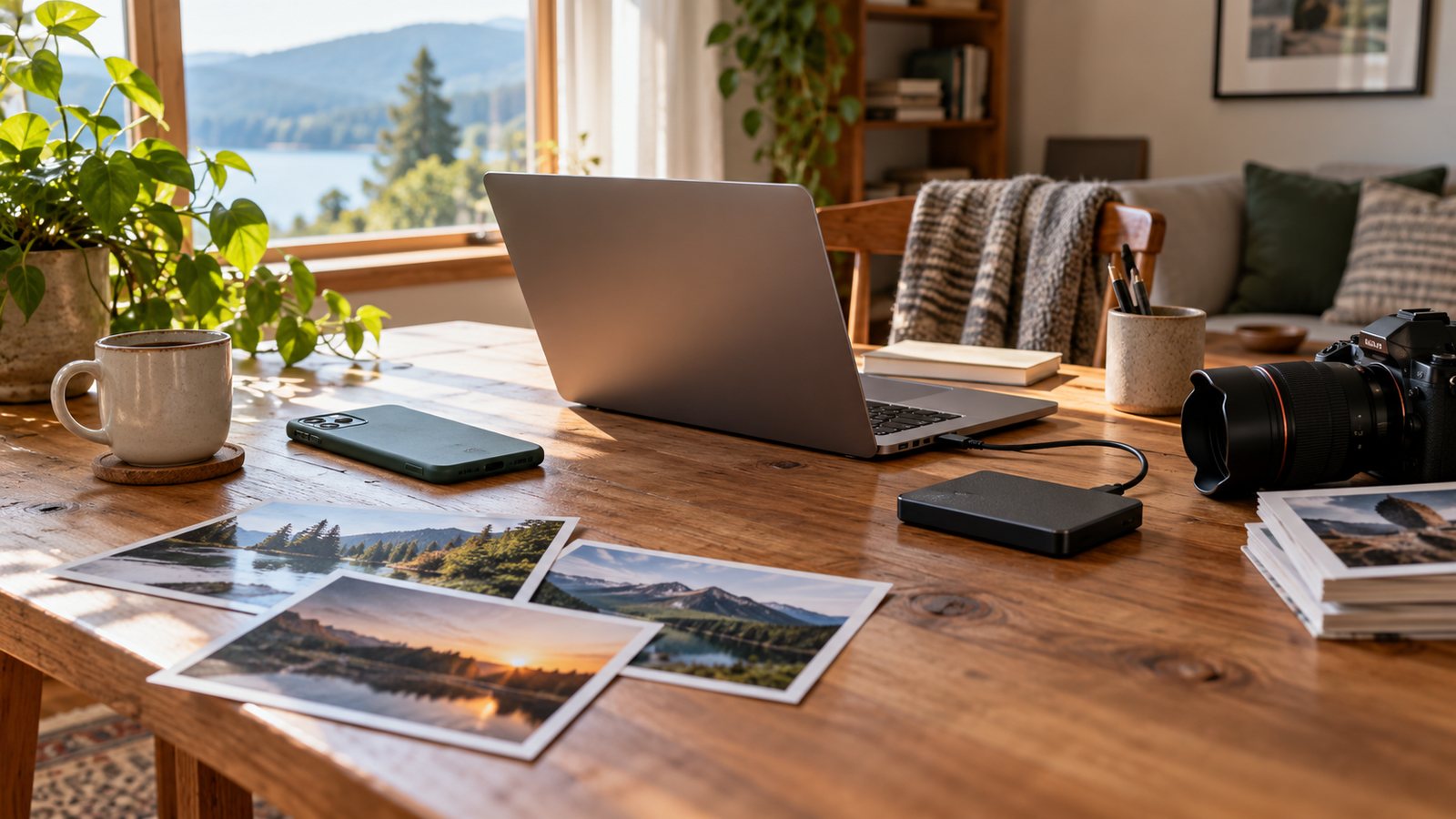
A low-storage warning is a clue to investigate, not a reason to erase your camera roll. First find out which storage pool is close to its limit, then review the largest items you can replace or download again.
This walkthrough covers iPhone and Android. Menu labels can shift between software versions, so use Settings search if the path on your device looks different. The safest cleanup is gradual: note the starting number, remove one category, and check what changed.
Start by locating the limit
On an iPhone, open Settings → General → iPhone Storage. The list shows space used on the handset. iCloud has a separate storage screen under your name in Settings. Extra iCloud capacity cannot enlarge the phone itself, and a full iCloud plan may affect syncing even when the device still has room.
On Android, look under Settings → Storage or search for “storage.” Write down the free space and the two largest categories. Storage is where apps, downloads, and photos live; RAM is working memory and is a different measurement.

Clear replaceable files before personal photos
Check the items that are easiest to restore:
- Video, music, and podcast downloads: remove them from inside the app that saved them. Keep anything you will need offline, and confirm you can stream or download the rest again.
- Downloads: sort by file size and open each large item before removing it. A document stored nowhere else is not a disposable download.
- Apps you rarely use: look at the app’s data and sign-in requirements. A map, ticket, or authenticator can be important even if it is opened only occasionally.
iPhone storage details may offer Offload App, which removes the app but keeps its documents and data for a possible reinstall. Delete App removes the app and its local data. On Android, clearing cache removes temporary files; clearing storage or data can erase app information and sign you out. Read the confirmation screen before choosing.

Check the photo backup before deleting anything
A picture appearing on a second device does not prove that it has a separate backup. With iCloud Photos, the library is synchronized, so deleting a photo on one connected device can remove it from the others. Apple’s Optimize Storage setting is designed to keep smaller local versions while originals remain in iCloud; review that setting before manually deleting images.
Google Photos on Android has a Free up space on this device option for local copies that have been backed up. That is different from deleting a photo from the library. Confirm that backup has finished, check that the correct account is open, and remember that a removed local copy may not be available offline or in a separate gallery app.
For irreplaceable pictures, keep a second copy outside the synchronized photo library. Open several files from that destination—including a video and items from older dates—before treating the copy as usable.

A small cleanup example
Imagine a phone reports 0.6 GB free. Its owner finds 2.4 GB of watched videos and 0.8 GB of podcast episodes that can be downloaded again. Removing those two groups could make about 3.2 GB available, bringing the rough total to 3.8 GB. This is sample arithmetic, not a guaranteed device result: storage displays can update slowly, and other files may also change.
After each removal, revisit the storage screen. If the free-space number barely changes, move to the next large category instead of deleting many tiny files at random. An update’s required space depends on that update and device; do not assume one universal free-space target will work everywhere.
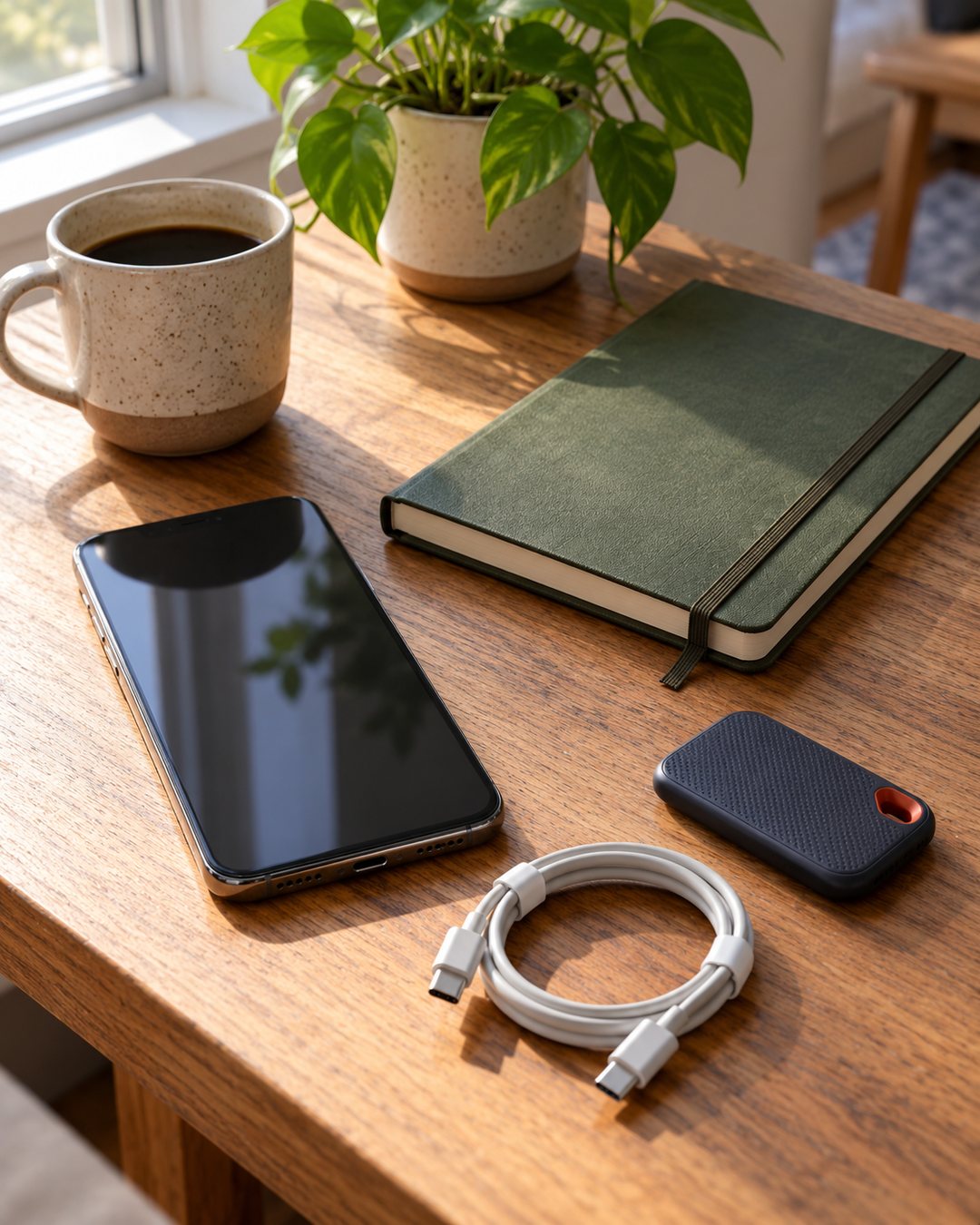
Before-you-delete checklist
- Did I check handset storage separately from cloud storage?
- Did I record the free-space number before cleaning?
- Can each selected download or app be restored, and do I need its data?
- Is photo backup complete in the account I intend to use?
- Have I opened files from an independent copy?
- Did I check the storage screen again after each change?
If “System” or another category looks unusually large, consult the support instructions for your exact phone model before trying a reset or a cleanup utility. Ads promising instant space do not establish that an app is safe or necessary.
Related: Troubleshoot slow phone charging before buying accessories.
Sources and scope
Official guidance checked October 27, 2026: Apple device storage; iPhone and iCloud storage; iCloud Photos; Android storage cleanup; Google Photos device-space cleanup.
The images are AI-generated illustrations, not screenshots, product tests, or evidence of a customer experience.
1 thought on “Your Phone Storage Is Full: What to Check Before Deleting Photos”
Comments are closed.