If a movie looks unusually slick or like a live studio recording, motion smoothing may be the reason. Try the same short scene with that processing switched off before changing several picture controls at once.
There is no universal best setting. Some viewers enjoy extra smoothness for sports and prefer less processing for movies. This guide helps you make a repeatable comparison on your own TV; it does not claim a tested setting for every model.
What motion smoothing changes
A TV may estimate intermediate frames to make movement appear smoother. That can change the feel of material originally presented with fewer frames per second, creating what is often called the soap-opera effect.
Motion controls can also include blur reduction or backlight-related options. These are not all the same process. A TV’s advertised refresh rate does not tell you whether interpolation is enabled, and a higher refresh-rate panel does not require you to use heavy smoothing.
Look closely at moving edges: hands crossing a face, a player passing in front of a crowd, or objects moving across a background. Processing can sometimes create odd outlines or other artifacts, although similar symptoms can have different causes.
Find the control for your exact model
Open the picture settings while the relevant movie or input is active. Note the model number and the current picture mode before changing anything. Menu names and availability vary by model, software and input.
- Samsung: official guidance calls the feature Auto Motion Plus or Picture Clarity. On supported models, look under Picture → Expert Settings, then the motion-related control.
- Sony: look for Motionflow in the picture settings. Some models expose Smoothness and Clearness separately; not every Sony TV offers the same adjustable controls.
- Other brands: use the user manual’s motion-processing section rather than assuming another manufacturer’s menu path applies.
Record the original value or take a photo of the setting for your own reference. Avoid factory-resetting the TV merely to find one option.
Run a one-scene comparison
- Choose a familiar 20–30-second scene with a slow camera pan and a person or object moving through the frame.
- Keep the source, picture mode and viewing position unchanged.
- Watch once with the current setting and note exactly what looks wrong.
- Switch motion smoothing off, if the TV provides that option, then replay the same scene.
- If you prefer some smoothing, try a low custom setting and compare again.
Do not change sharpness, noise reduction and motion settings together. Otherwise, you cannot tell which adjustment helped. If switching smoothing off exposes some judder in a slow pan, that is a tradeoff to assess, not automatic evidence that the TV has developed a fault.
A useful comparison note
Copy these fields: Model / source and input / picture mode / scene / original motion setting / changed setting / observed difference.
For example: “Living-room TV / streaming app / current movie mode / slow pan across a street / Auto / Off / compare natural movement and moving-edge artifacts.” This is an illustrative test plan, not a result measured on a particular television.
Repeat with a sport or program you actually watch before deciding to leave a setting permanently changed. A preference for one type of content may not carry over to another.
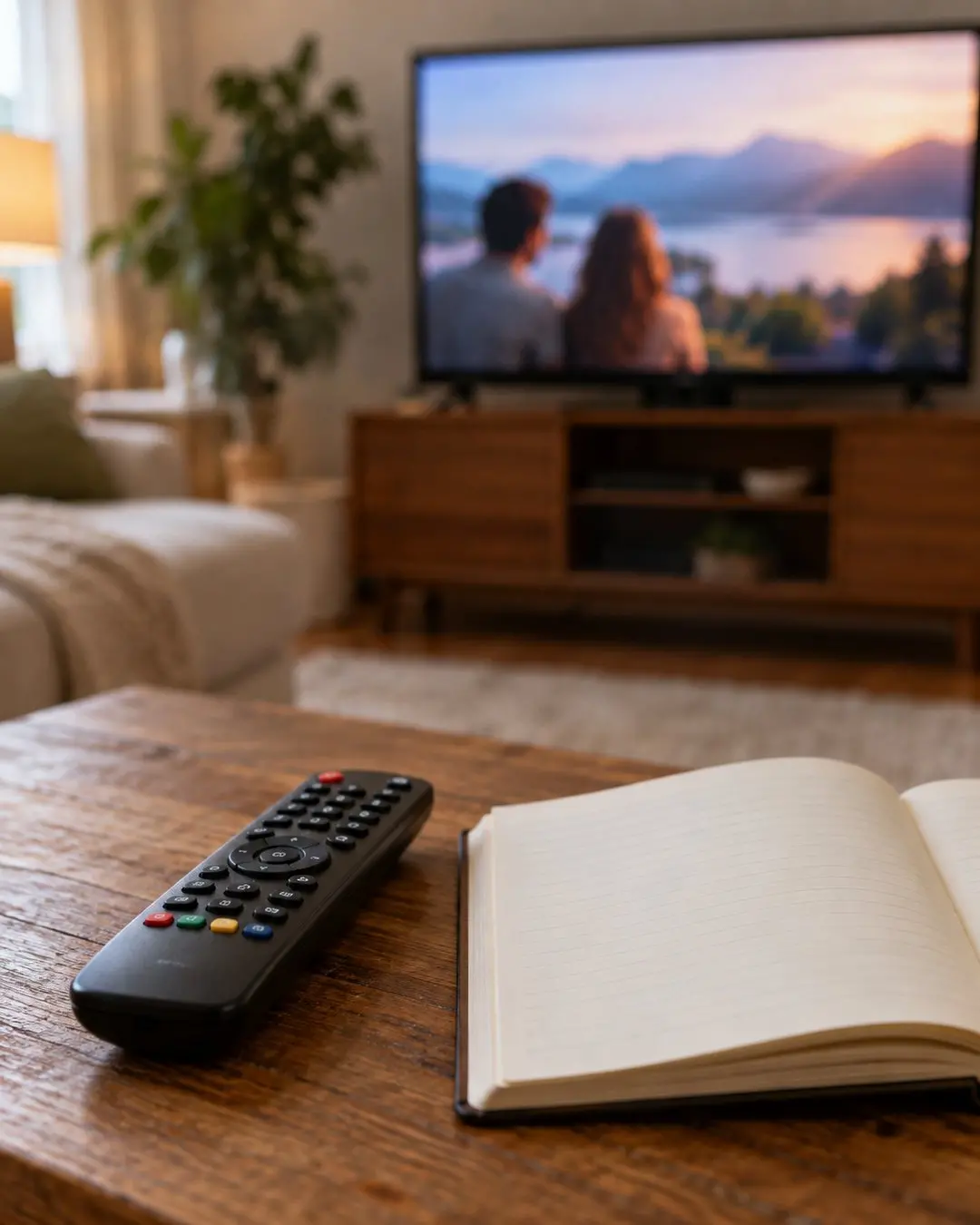
When smoothing is probably not the whole problem
- Video pauses or drops to a blocky image: investigate the source or streaming connection rather than treating every problem as motion interpolation.
- Menus or still pictures are also distorted: a motion-only setting is unlikely to explain everything.
- Only one input looks strange: compare that device and its output settings with a different source.
- A persistent line or fault appears across sources: use the manufacturer’s picture test and support instructions for the exact model.
For streaming symptoms, our home Wi-Fi troubleshooting guide offers a separate diagnostic route.
Official references
Checked October 31, 2026: Samsung: motion smoothing and the soap-opera effect; Samsung picture controls; Sony picture settings. Consult your own model’s manual when labels differ.
Images are AI-generated illustrations, not screenshots, measured product tests or photographs of an actual installation or data-extraction result.